
TUI#
gptme ships an optional Textual-based terminal UI, gptme-tui, complementary
to the plain CLI (which remains better suited for non-interactive
and scripted use).
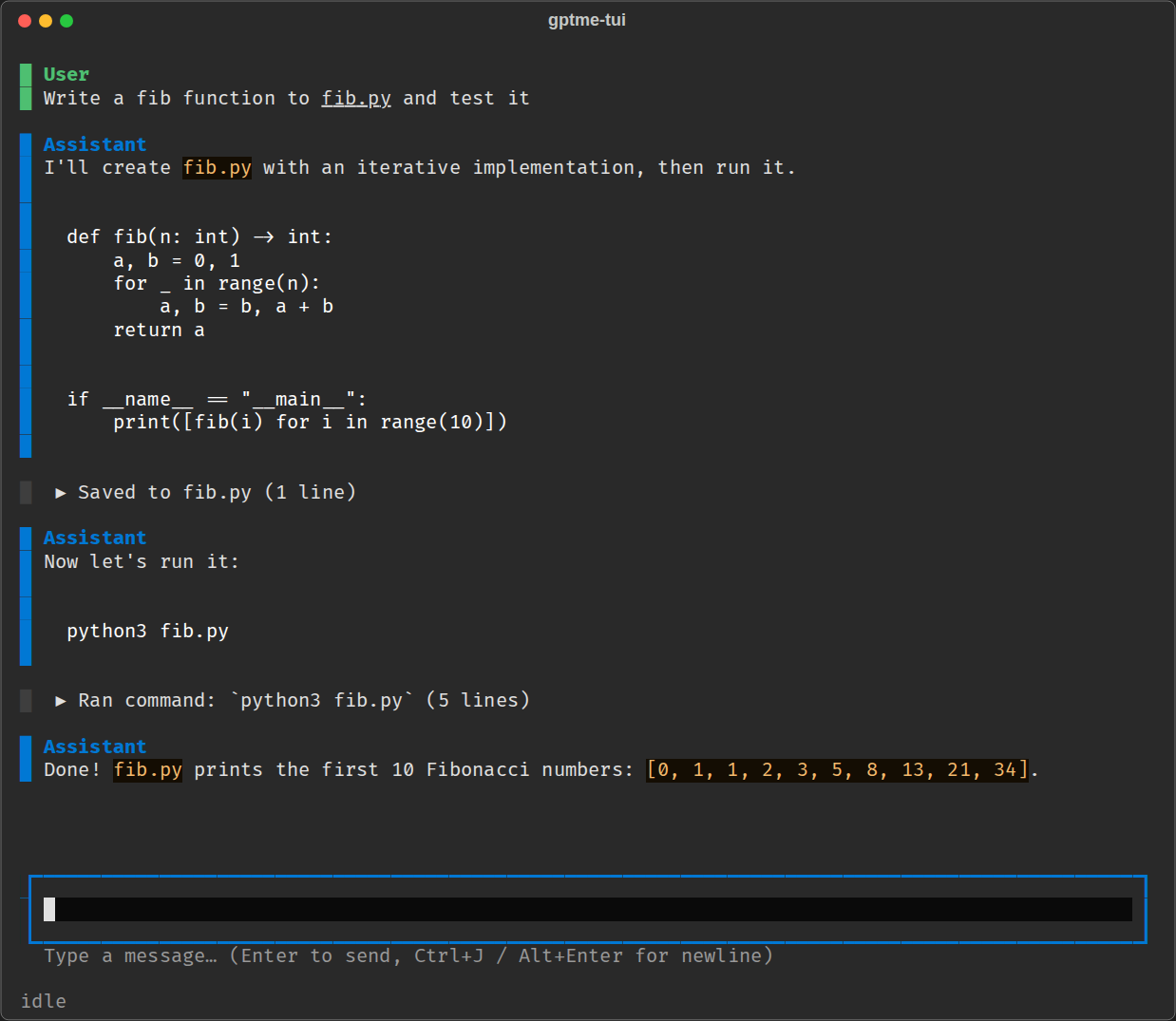
It addresses two long-standing UX limitations of the plain CLI (see issue #569):
Prompt queueing: type and submit new prompts while the agent is working. They are shown dimmed in the conversation and dispatched automatically when the current turn finishes.
Compact, expandable output: tool output is collapsed to a one-line summary by default (like HTML
<details>); click it or press Ctrl+O to expand.
It also provides a persistent status bar showing the current model, token usage relative to the context window, and agent state.
Installation#
The TUI requires the tui extra:
pipx install 'gptme[tui]'
Usage#
Start a new conversation in the current directory:
gptme-tui
Or start with a prompt, like with gptme (chain several with -):
gptme-tui "write a script that counts lines" - "now add tests"
Pick a conversation to resume from a list (or start a new one), or resume a specific one by name:
gptme-tui --resume
gptme-tui --resume <name>
Conversations are stored in the same format and location as CLI conversations,
so they can be opened interchangeably: start in the TUI, resume in the CLI
(gptme --resume), or vice versa (gptme-tui -n <name>).
To switch without leaving the conversation, use /restart cli in the TUI or
/restart tui in the CLI. /restart web opens the conversation in the
web UI of a running gptme-server
(see Commands).
Inline mode (experimental)#
By default the TUI runs in the alternate screen with its own scrollable chat
view. With --inline it instead renders like Claude Code: messages are
printed into the terminal’s native scrollback while only a small live
region (streaming preview, input, status bar) stays at the bottom:
gptme-tui --inline
Terminal/tmux scrolling then works normally, and the transcript stays in your scrollback after exit. Prompts submitted while the agent works are listed above the input until they are sent. Trade-offs: past tool output can’t be expanded in place (Ctrl+O instead toggles whether future tool output and thinking print expanded), mouse interaction is left entirely to the terminal, and dragging the terminal narrower can leave fragments of the input area in the scrollback.
Display settings#
/display changes what the TUI shows; it never changes what the model does
(for reasoning effort, see Reasoning effort). Run it alone to list the
current settings.
/display thinking [on|off]: model thinking. Hidden by default: a finished message shows a one-line placeholder, and the live preview shows only the response. SetGPTME_TUI_DISPLAY_THINKING=1to show it from startup./display outputs [on|off]: expand or collapse tool output./display hidden [on|off]: messages sent to the model but normally not shown, such as token-usage and time notices. Off by default; setGPTME_TUI_DISPLAY_HIDDEN=1to show them from startup./display highlight [on|off]: syntax-highlight commands in tool-call titles and output summaries. On by default; setGPTME_TUI_DISPLAY_HIGHLIGHT=0to turn it off from startup./display grouping [on|off]: group an agent turn’s steps into one block: the agent’s name once, each tool’s output indented under the call that ran it. Output from hooks and other notices keeps its own block, and nothing is shown out of order. Off shows one block per message, as stored in the log. On by default; setGPTME_TUI_DISPLAY_GROUPING=0to turn it off from startup. Full-screen mode only.
Ctrl+O is the shorthand for both: it expands tool output and thinking, or collapses both when both are already expanded.
Without on/off the setting toggles. In the default view the change
applies to existing messages; in inline mode it applies to messages printed
afterwards.
Status line#
The status bar shows the model, context use, cost and what the agent is doing. To render your own instead, for example with the same script as your Claude Code status line, set a command:
# ~/.config/gptme/config.toml
[tui]
statusline = "python3 ~/.claude/scripts/statusline.py"
See TUI status line for what the command receives.
Keys#
Key |
Action |
|---|---|
Enter |
Send prompt (queues it if the agent is busy) |
Alt+Enter |
Insert newline (Ctrl+J also works) |
Tab |
Complete slash-commands and their arguments |
Escape |
Interrupt generation |
Ctrl+C |
Interrupt generation, or quit when idle |
Ctrl+D |
Quit |
Ctrl+O |
Expand/collapse all tool outputs and thinking |
A prompt sent while the agent is working is queued. It joins the running turn before the agent’s next step, so you can steer it without waiting for the turn to finish. If it contains URLs, you’re asked whether to fetch them when you queue it. The queue stays in order: a slash-command waits until the turn ends, and so does everything queued after it.
When a tool is about to execute, a confirmation dialog shows a preview; press y to execute, n to skip, or a to auto-confirm for the rest of the session.
Commands#
The TUI supports the same slash-commands as the CLI
(/model, /undo, /tokens, …), with the same Tab completion,
by routing them through the shared command registry. Command output is
shown inline in the conversation. /quit is a TUI-local alias for
/exit, and /display (see Display settings) is TUI-only.
Outside commands, Tab completes the last word as a file path, adding a
trailing / to directories. A path in your message (journal/,
./notes.md, README.md) is attached to it; a bare word like
journal is left as text.
Limitations#
The TUI is young and intentionally minimal. Commands that need an external
terminal program (e.g. /edit spawning $EDITOR) don’t work yet; switch
the conversation to the CLI for those with /restart cli. Non-interactive/scripted use should
keep using gptme directly.